
Using Caido instead? The Vigolium Caido plugin offers the same workflows — dispatch, proxy forwarding, sitemap snapshots, and the live bridge — over the same bridge protocol, with
--caido-bridge-url as an alias for --burp-bridge-url.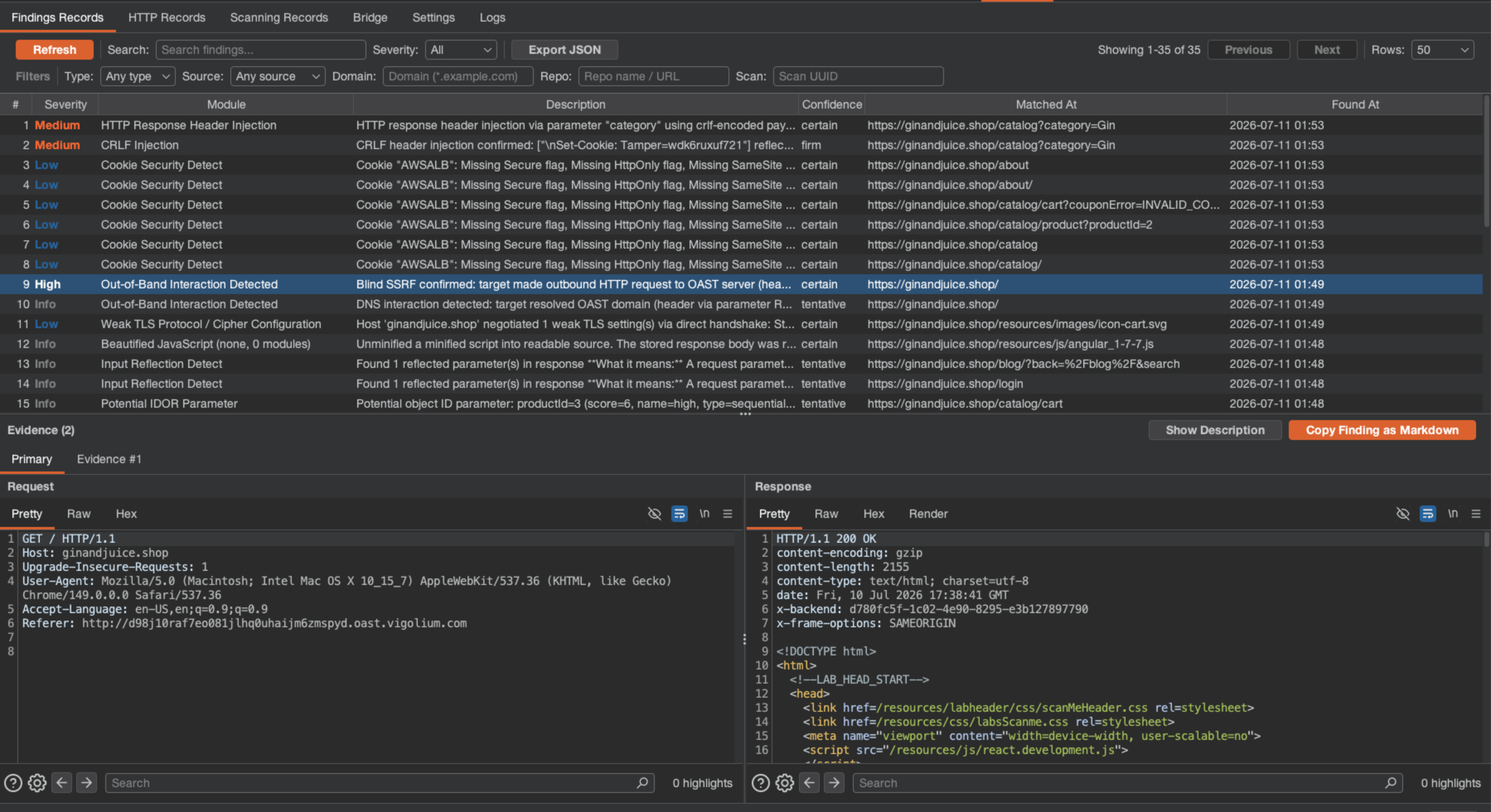
Findings Records tab in Burp Suite — findings, request/response evidence, and Copy Finding as Markdown
Download the extension
The extension is distributed as a pre-built JAR from the dedicated repository:Vigolium Burp Suite extension
Grab the latest
burp-vigolium.jar and browse the source at
github.com/vigolium/burp-vigolium.burp-vigolium.jar directly, or build it from source:
The bidirectional live bridge and Target Site map snapshots require
burp-vigolium v0.2.0 or later. Earlier builds can still forward per-request traffic and launch scans, but do not expose the loopback bridge listener. The installed version is shown in the upper-right corner of the Settings view.Install and connect
1
Start the Vigolium server
The extension needs a running server to talk to. Start one (add Retrieve the API key to paste into the extension:
--mirror-fs <dir> to also write traffic to disk):2
Load the JAR into Burp
In Burp, go to Extensions → Installed → Add. Set Extension type: Java, choose the downloaded
burp-vigolium.jar, and click Next. A Vigolium tab appears.3
Point it at your server
Open Vigolium → Settings, enter the Server URL (default
http://127.0.0.1:9002) and API Key on the Server Connection row, then click Test Connection to confirm the server is reachable.4
Send traffic
Use a Burp context-menu action or a keyboard shortcut to dispatch traffic. Findings stream into the Findings Records tab and the Web UI as they are produced.
The installed extension version is shown in the upper-right corner of the Settings view. Release builds read it from the JAR manifest; local IDE runs display
development.Three dispatch workflows
Right-click a request in Proxy History, Target Site map, Repeater, or any supported Burp request view — the actions are available directly, without opening a nested menu:
Vigolium preserves headers, cookies, body fields, query parameters, and path segments as scanner input, so a request sent from Repeater is scanned exactly as you shaped it.
Forward proxy traffic automatically
Instead of dispatching requests one at a time, enable Proxy Mode to forward everything flowing through Burp Proxy into Vigolium. Combine it with In-scope only so static assets and out-of-scope hosts don’t pollute the database, and use the Proxy Filter Rules to allow or deny by file extension, HTTP method, or host.Passive-only ingestion
Pair Proxy Mode with a passive-only server (
vigolium server -S --passive-only) to continuously analyze browsed traffic — secrets, security headers, cookie flags, disclosure — without sending any active requests. See Server & Ingestion.What you get inside Burp
The Vigolium panel is organized into six tabs: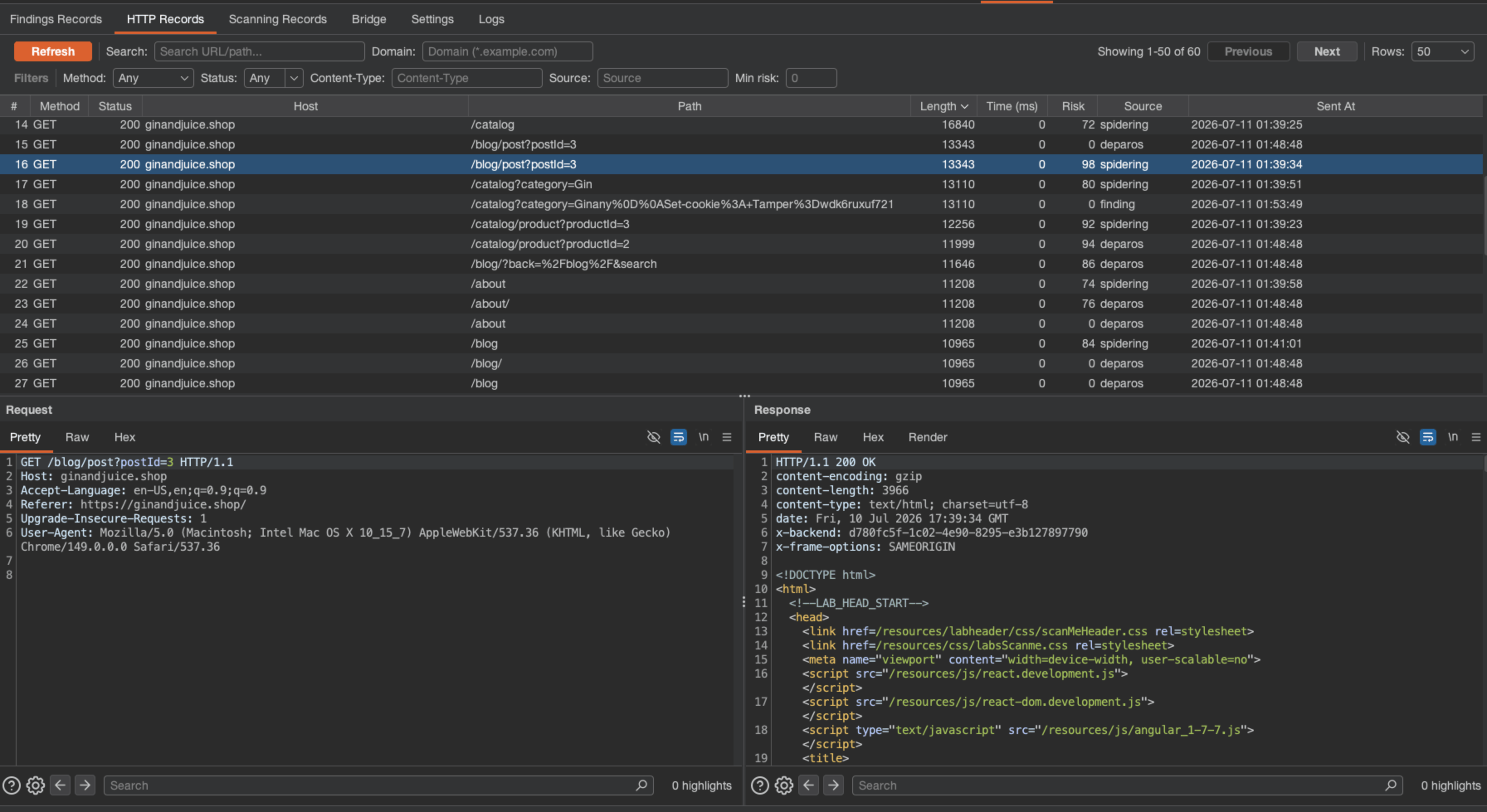
HTTP Records tab — filterable, sortable request/response records synchronized with Vigolium
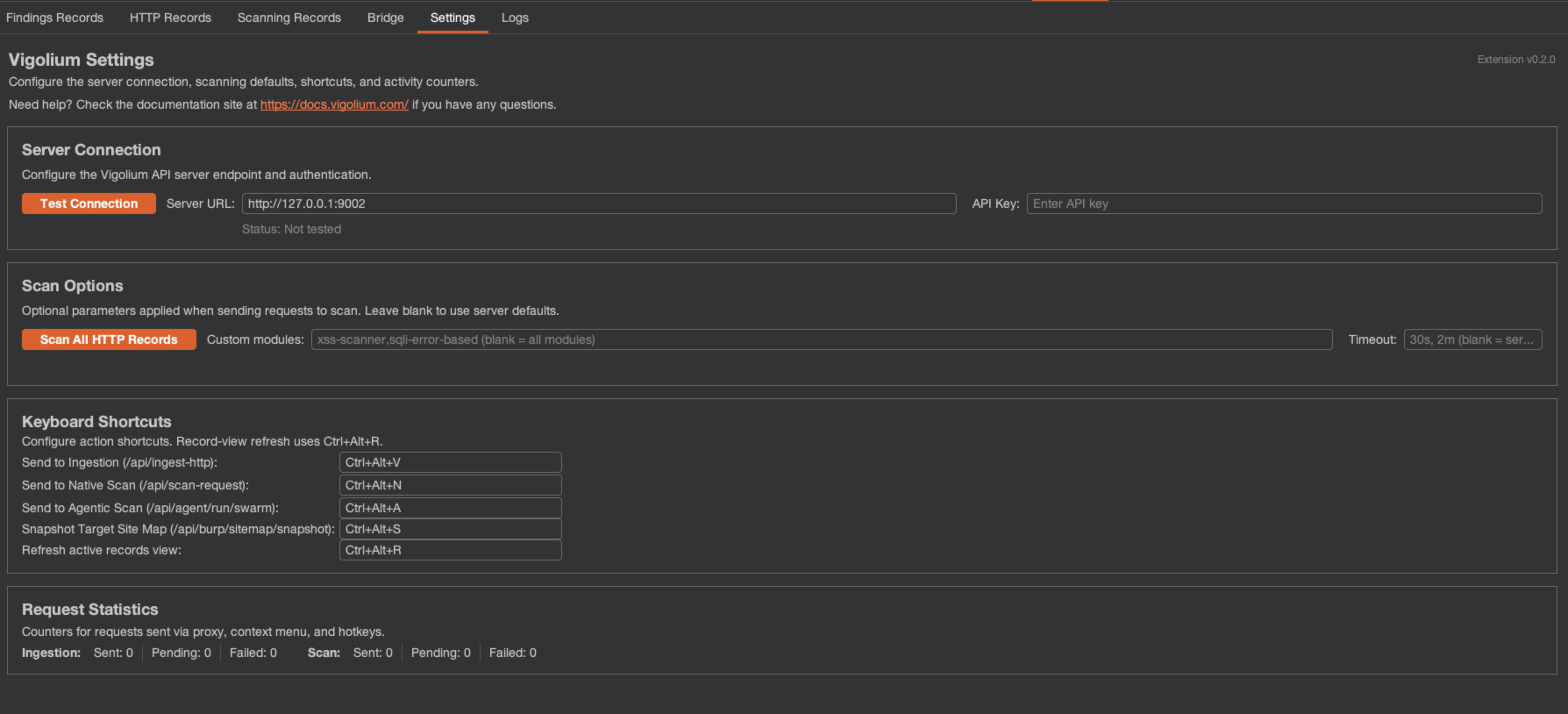
Settings tab — server connection, scan options, keyboard shortcuts, and request statistics
Keyboard shortcuts
Every action is rebindable under Settings → Keyboard Shortcuts. The defaults:Ctrl+Alt+R is contextual — while focus is inside Findings Records, HTTP Records, Native Scans, or Agentic Scans, it activates that view’s Refresh button.
Target Site map snapshots
Beyond per-request dispatch, the extension can upload your whole Target Site map to Vigolium in one shot. Open Vigolium → Bridge → Target Site Map Snapshot and either run a snapshot immediately (Ctrl+Alt+S) or enable periodic snapshots (disabled by default; five-minute interval when on). Use In-scope only to exclude out-of-scope traffic.
Snapshots are incremental within the current Burp session and idempotent on the server: requests and available responses upload in bounded chunks, and unchanged records are never duplicated.
Bidirectional live bridge
The live bridge connects Vigolium’s CLI and server to Burp in both directions over an opt-in, loopback-only listener — query live Burp Proxy history from Vigolium, or copy Vigolium traffic back into Burp’s Target Site map. The same protocol backs the Caido plugin, so--burp-bridge-url and its --caido-bridge-url alias are one flag. Which vendor is listening is discovered, not declared: each reply carries an implementation identity that Vigolium maps onto the record’s source label (burp or caido), and the merged /api/http-records response names it in X-Vigolium-Bridge-Source. A listener too old to report one is read as burp.
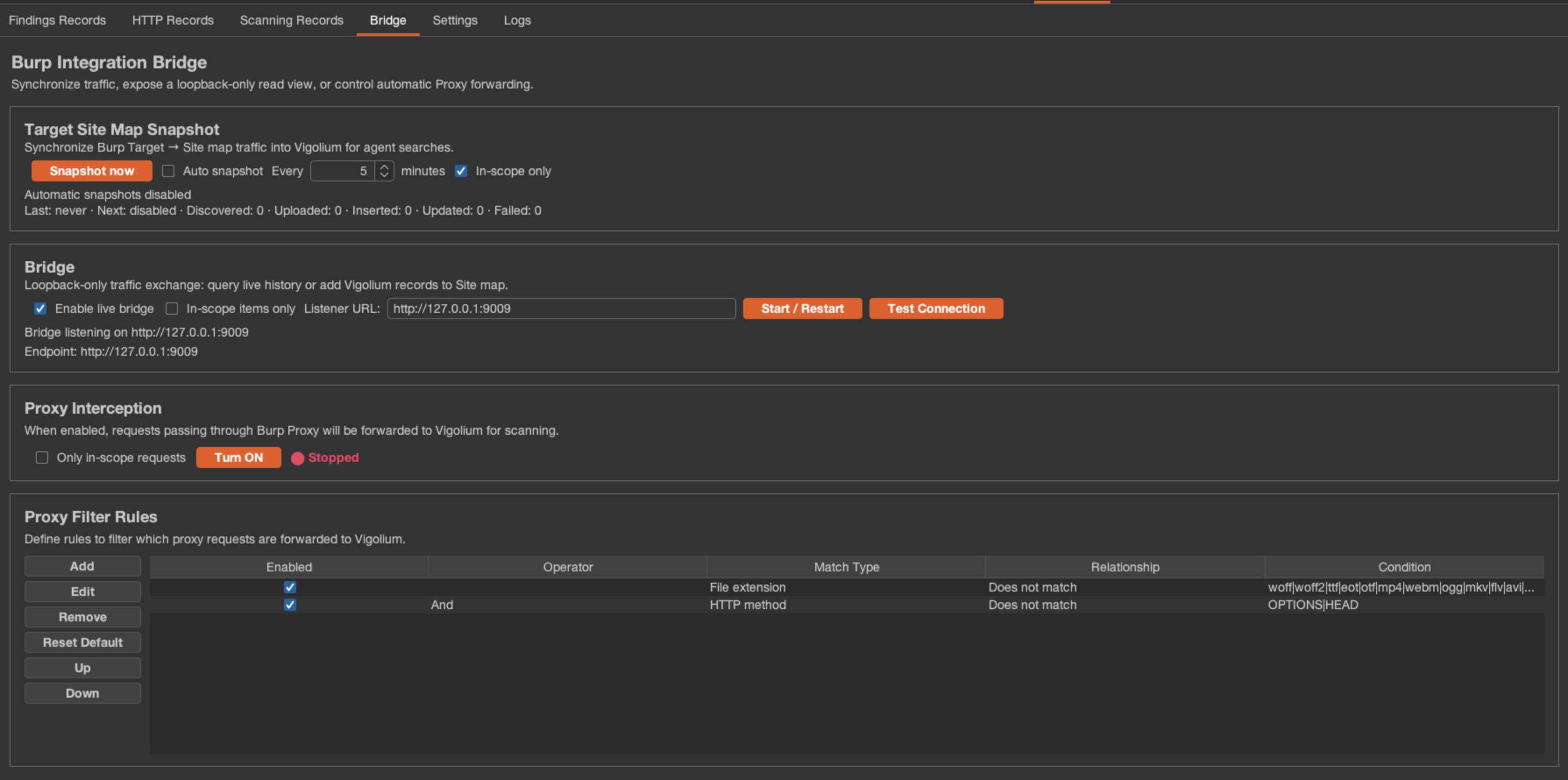
Bridge tab — Target Site map snapshots, the loopback live-bridge listener, Proxy forwarding, and filter rules
1
Enable the listener in Burp
Open Vigolium → Bridge, select Enable live bridge, and set the listener URL (default
http://127.0.0.1:9009). The extension starts an embedded HTTP server on that loopback address; it refuses non-loopback binds. Optionally enable In-scope items only to keep bridge searches within Burp’s Target scope.2
Point Vigolium at the listener
Pass the listener URL to any bridge-aware command with the Only when you’d rather not repeat the flag across many commands in the same shell, export the env var once instead:
--burp-bridge-url flag — this is the recommended way, since each command stays explicit and self-contained:--burp-bridge-url http://127.0.0.1:9009; if you exported VIGOLIUM_BURP_BRIDGE_URL, drop the flag.
Read live Burp history
Merge Burp’s Proxy history into a Vigolium traffic view without persisting anything. Live rows are labelledsource: burp, and the usual filters, sorting, pagination, and JSON output all apply:
GET /api/http-records then returns Burp’s live rows merged with stored ones:
Persist Burp traffic into the database
Two ways in, depending on how much you want:--burp-bridge-url can’t be combined with a path argument or --glob-db in the same import invocation.
traffic -B --save-to-vigolium-db no longer silently truncates the write at 100 records. An untyped -n is a listing default and must not bound an import, so the import runs unlimited; a typed -n is honored as an explicit budget and warns when the cap actually bit.Push Vigolium traffic back into Burp
The reverse direction — copy stored records into Burp’s Target Site map so you can work them by hand:--save-to-burp and --save-to-vigolium-db are mutually exclusive — pick a direction per command.
Seed an agentic scan from Burp
Autopilot can pull live history across the bridge before it builds its prior-context brief and runs the pre-scan, so the agent starts from the traffic you already browsed instead of rediscovering it:The bridge listener is disabled by default and requires no credentials because it only binds to a validated loopback address, rejects unexpected
Host/Origin headers, and uses temporary result references that expire when the listener restarts or the extension unloads. Disabling the setting or unloading the extension stops the listener immediately.Send traffic through Burp’s engine
The read/write bridge above moves stored traffic between the two tools. The send bridge goes one step further: it letsreplay, fuzz, and finding issue a request through Burp’s own HTTP stack — so the exact bytes you assembled hit the wire (a hand-crafted Content-Length, a smuggling prefix, an unusual method) instead of being normalised by Go’s client — and stage the exchange into Repeater or Organizer for manual follow-up.
All of these flags require --burp-bridge-url (the same loopback listener as above; env fallback VIGOLIUM_BURP_BRIDGE_URL). They are opt-in — without them, each command’s send path is byte-for-byte unchanged. The listener is preflighted once up front, so an unavailable bridge is a single clear error rather than one failure per request.
Requires a
burp-vigolium build that exposes the /api/burp-bridge/{send,repeater,organizer} endpoints (the installed version is shown in the extension’s Settings view). If a target is out of scope and Burp is set to “in-scope only”, the send returns a clean error instead of silently dropping.Send exact bytes with --send-via-burp
Go’s HTTP client normalises what you hand it: it recomputes Content-Length, re-frames the request, and rejects some malformed constructions outright. That’s fine for ordinary traffic and fatal for the attacks that depend on the malformation. --send-via-burp hands the raw bytes to Burp’s stack instead, so what you assembled is what reaches the wire:
Choose the wire protocol with --http-mode
auto (the default) negotiates normally, which can renegotiate HTTP/2 and re-frame your request. For request smuggling and desync work, pin HTTP/1 so the framing you wrote survives:
auto, http1, http2, http2_ignore_alpn. --send-timeout bounds a single send (max 2 minutes; the bridge’s own 30s default otherwise) on replay and fuzz.
Stage a request in Repeater
--to-repeater opens the request in a Burp Repeater tab, ready for manual iteration. --repeater-tab <name> names the tab (default vigolium):
Burp caps Repeater at roughly 30 tabs per minute. For a large selection, prefer the Organizer (
--push-to-burp, one item per finding) over --to-repeater.Store an exchange in the Organizer
--to-organizer stores the request and its response as a Burp Organizer item — the right destination for a batch you want to triage later, since it has no tab-rate limit:
--notes longer than 200 characters is truncated with an ellipsis and warned about, never rejected — losing a note’s tail beats losing the evidence. --highlight accepts none, red, orange, yellow, green, cyan, blue, pink, magenta, or gray.
Push fuzz matches to the Organizer
Fuzz through Burp’s engine and let every matched anomaly land in the Organizer automatically — Burp re-issues each one, so the stored item carries its own response:--match-* / --exclude-* before pointing a big wordlist at it. See vigolium fuzz for the full matcher set.
Push findings to the Organizer
--push-to-burp hands a finding’s evidence request and response to the Organizer, colour-coded by severity, one item per finding. It honours the usual finding selectors — a fuzzy term, --id, --severity, --min-severity:
Flag reference
Under the hood
The extension calls the standard Vigolium API (authenticated withAuthorization: Bearer {API_KEY}):
The loopback bridge listener is a separate, unauthenticated, local-only transport (
/api/burp-bridge/{search,inspect,sitemap,send,repeater,organizer}). For lower-level ingestion details, see Server ingestion; for the full extension reference and source, see github.com/vigolium/burp-vigolium.